Mark. Navigate.
Mix.
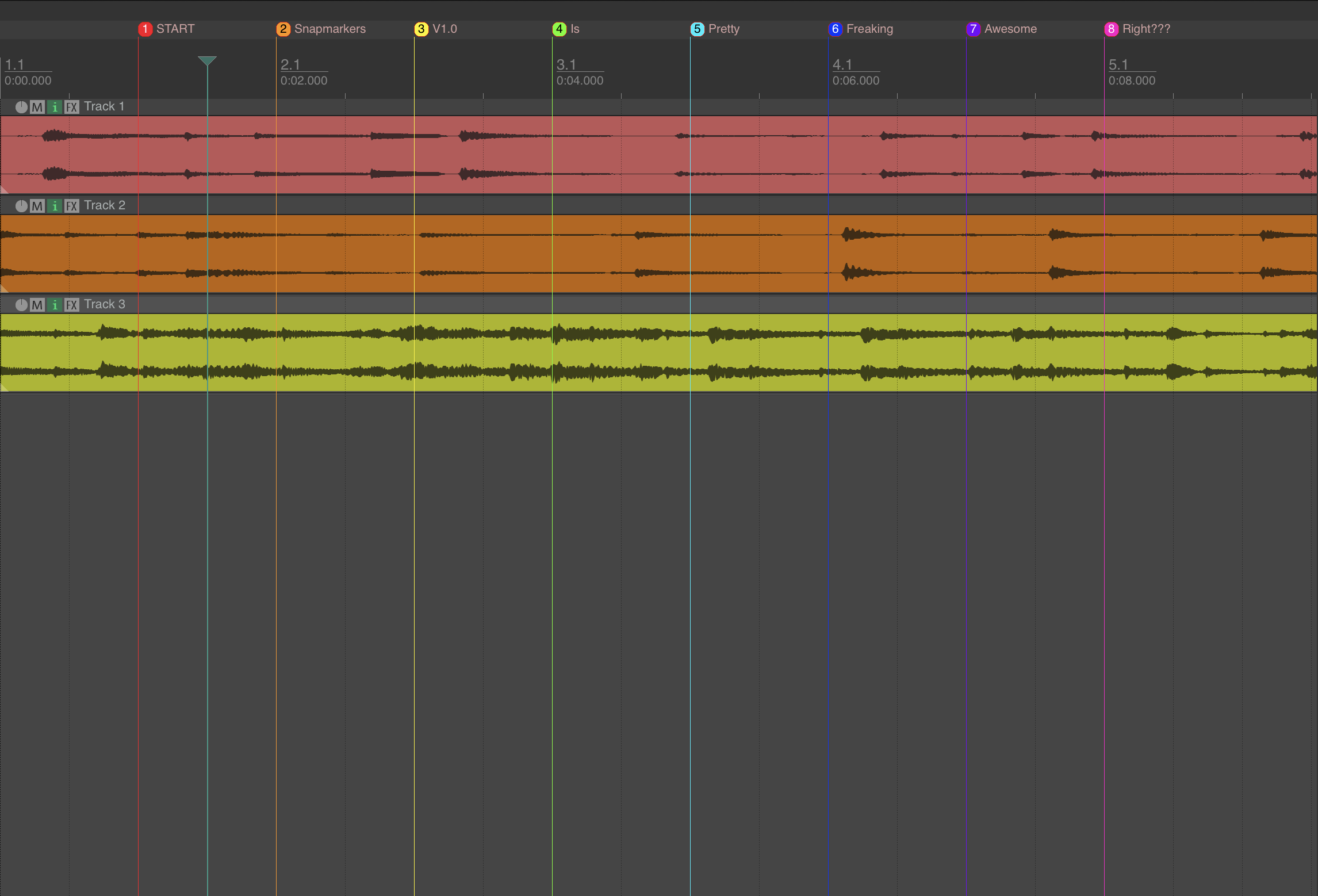
SnapMarkers bridges your console or controller with REAPER's timeline — turning every MIDI, OSC, or DiGiCo PAD message into an instant, powerful marker tools.
macOS · Free REAPER Extension · v1.3
Beta for ProToolsFeatures
Every tool in SnapMarkers is built for real sessions — fast REAPER marker creation, clear feedback from your DiGiCo console or MIDI controller, zero friction.
Instant Snapshot Creation
One button on your control surface creates a named, color-coded marker at the exact playback position in REAPER. No clicking around, no missed cues.
Three Control Modes
Connect via DiGiCo PAD for deep console integration, generic OSC for universal support, or standard MIDI Program Change for broad controller compatibility.
Smart Transport Control
Start/Stop playback, initiate recordings, jump between markers, and precisely navigate the REAPER timeline - all from the comfort of your desk.
Discography Files & Editor
Every project builds a .lua discography mapping program changes to names and colors. The built-in editor lets you curate, rename, and recolor — changes apply instantly.
Click to Jump
The snapshot list isn't just for reference. Click any marker to move REAPER's playhead directly to that position — your entire session navigable at a glance.
Unrecognized Snapshot Handling
When SnapMarkers receives a Program Change it doesn't recognize, it opens a dialog to capture the snapshot's name and color — turning every surprise cue into an organized, reusable marker automatically.
Setup
SnapMarkers deploys fast. Whether you're connecting a DiGiCo PAD or a MIDI controller, most REAPER setups are running in under five minutes.
1 Install the Plugin
Run SnapMarkersInstaller_V1.3.dmg and follow the prompts. The installer places reaper_snapmarkers.dylib into your REAPER UserPlugins folder automatically.
.dylib to ~/Library/Application Support/REAPER/UserPlugins/Macros
Complete reference for every DiGiCo PAD softkey label and MIDI assignment. SnapMarkers matches by label — spelling matters.
Snapshot Triggers
Firing a snapshot creates a named, color-coded marker at the current playhead. The method depends on your mode.
| Function | PAD Softkey Label | MIDI Assignment |
|---|---|---|
| Fire snapshot (cue N) | Softkey labeled by snapshot name | PC N on Ch. 1 |
Marker State
| Function | PAD Softkey Label | MIDI Assignment |
|---|---|---|
| Set Disabled | disabled or marker disabled | CC 119, val 0 |
| Set Record Only | record mode or record only | CC 119, val 63 |
| Set Enabled | enabled or marker enabled | CC 119, val 127 |
| Cycle state | cycle marker or cycle enabled | — |
Transport Mode
| Function | PAD Softkey Label | MIDI Assignment |
|---|---|---|
| Scrub mode | scrub | CC 118, val 0 |
| Follow mode | follow | CC 118, val 63 |
| Loop mode | loop | CC 118, val 127 |
| Cycle transport | cycle transport | — |
List Filter
| Function | PAD Softkey Label | MIDI Assignment |
|---|---|---|
| Reference all markers | all or all markers | CC 117, val 42 |
| Reference same name | named or named markers | CC 117, val 63 |
| Reference new names | new name | CC 117, val 127 |
| Cycle filter | cycle filter or cycle list | — |
REAPER Transport
| Function | PAD Softkey Label | MIDI Assignment |
|---|---|---|
| Play | play | PC 64, Ch. 2 |
| Stop | stop | PC 65, Ch. 2 |
| Record | record, arm, or punch | PC 66, Ch. 2 |
Changelog
Drag-and-drop in the primary UI window and the discography edit window now scrolls when the user drags a snapshot past the visible window.
Editing snapshot names in the discography editor window made easier. Now only requires a single click on the snapshot title when the row is selected.
Color selection in discography editor window upgraded with custom, clean UI. Patched issues where colors would update on the wrong snapshot or not update on batch selections.
Coincides with updgrades to Pro Tools beta version.
Follow state functionality independent of marker state
Entering the follow transport state now automatically forces the marker state to disabled mode (visual representation, no functionality change)
Leaving the disabled marker state while in the follow state forces the transport state to "Scrub"
PAD mode follow state now directly references the marker list rather than checking the console's snapshot name against the discography first. Therefore, PAD follows don't require a discog, and PAD follows in projects with a discog are more optimized.
Support
Having trouble? We're happy to help.